

How to add touch function to HTN LCD display?
Leave a message

Hey there! As a supplier of HTN LCD displays, I often get asked about how to add touch function to these displays. In this blog post, I'm gonna break down the whole process for you in a simple and easy - to - understand way.
Why Add Touch Function to HTN LCD Displays?
First off, let's talk about why you might want to add touch functionality to an HTN LCD display. HTN (High - Twist Nematic) LCDs are popular for their good contrast, wide viewing angles, and relatively low power consumption. They're used in a bunch of applications like industrial control panels, medical devices, and consumer electronics. Adding touch functionality can take these displays to the next level, making them more interactive and user - friendly. For example, in a medical device, a touch - enabled HTN LCD can allow doctors to input data directly on the screen, which is way more convenient than using a separate keyboard or mouse.
Types of Touch Technologies Compatible with HTN LCDs
There are several touch technologies out there, but not all of them are suitable for HTN LCD displays. Here are the main ones that work well:
Resistive Touch Technology
Resistive touch screens are one of the most common types. They consist of two flexible layers separated by tiny spacers. When you press on the screen, the two layers come into contact at that point, and the system can detect the location of the touch. The great thing about resistive touch technology is that it can be used with a finger, a stylus, or even something like a gloved hand. It's also relatively inexpensive to implement. However, resistive touch screens aren't as durable as some other types, and they can have a slightly lower transparency, which might affect the display quality of the HTN LCD a bit.
Capacitive Touch Technology
Capacitive touch screens are another option. They work by detecting changes in electrical capacitance when a conductive object (usually a finger) comes close to the screen. Capacitive touch screens offer a more responsive and accurate touch experience compared to resistive ones. They also have better transparency, so they won't degrade the display quality of the HTN LCD as much. But they can be more expensive, and they usually require a bare finger to work, so they might not be suitable for all applications.
Steps to Add Touch Function to an HTN LCD Display
Step 1: Choose the Right Touch Technology
As I mentioned earlier, you need to decide between resistive and capacitive touch technology based on your application requirements. If cost is a major concern and you need the flexibility of using different input methods, resistive touch might be the way to go. On the other hand, if you want a high - end, responsive touch experience and don't mind spending a bit more, capacitive touch is a better choice.
Step 2: Select a Compatible Touch Panel
Once you've chosen the touch technology, you need to find a touch panel that's compatible with your HTN LCD display. The touch panel should have the same size and aspect ratio as the LCD. You also need to make sure that the touch panel's controller can communicate with your system. Many touch panel manufacturers provide controllers that are easy to integrate with different types of displays.
Step 3: Mount the Touch Panel
Mounting the touch panel on the HTN LCD display is a crucial step. You need to make sure that the touch panel is aligned correctly with the LCD. There are different ways to mount the touch panel, such as using adhesive or mechanical fasteners. If you're using adhesive, make sure it's a high - quality adhesive that won't cause any air bubbles or damage to the display.
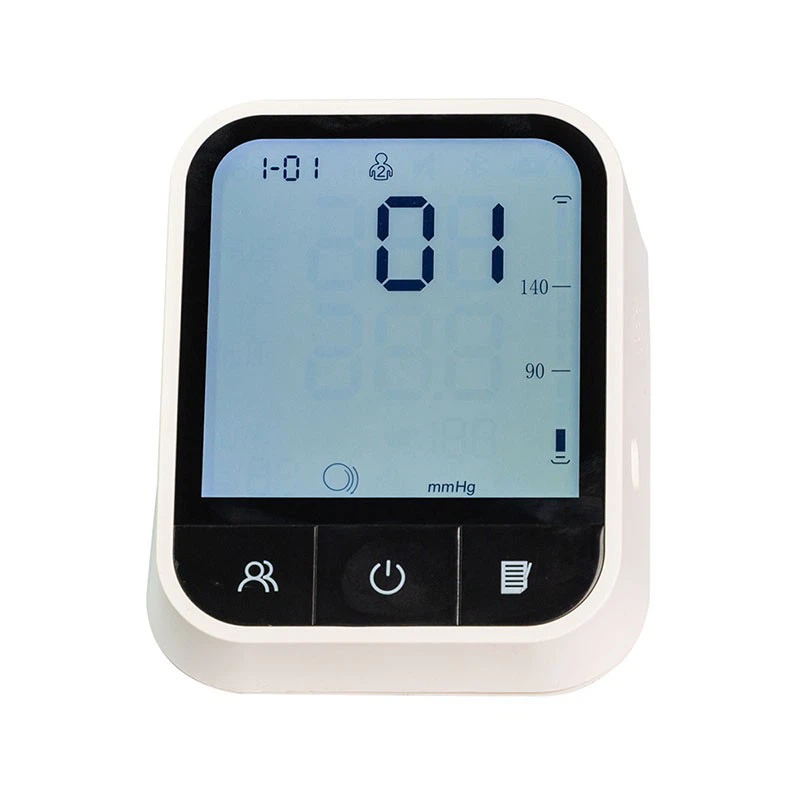

Step 4: Connect the Touch Panel Controller
After mounting the touch panel, you need to connect the touch panel controller to your system. This usually involves connecting the controller to the main board of your device using a cable. You'll also need to install the appropriate drivers for the touch panel controller so that your system can recognize and interpret the touch inputs.
Step 5: Calibrate the Touch Screen
Once everything is connected, you need to calibrate the touch screen. Calibration ensures that the touch inputs are accurately mapped to the correct locations on the display. Most touch panel controllers come with calibration software that you can use to perform this task. During calibration, you'll be asked to touch specific points on the screen, and the system will adjust the touch sensitivity and accuracy accordingly.
Considerations for a Successful Integration
When adding touch function to an HTN LCD display, there are a few other things you need to keep in mind:
Display Quality
As I mentioned earlier, some touch technologies can affect the display quality of the HTN LCD. You need to make sure that the touch panel you choose doesn't significantly reduce the contrast, brightness, or color accuracy of the display. You can test the display with the touch panel installed to see if there are any noticeable differences.
Environmental Conditions
Think about the environmental conditions in which your device will be used. For example, if the device will be used in a dusty or wet environment, you need to choose a touch panel that's resistant to these conditions. Resistive touch screens are generally more resistant to dust and water compared to capacitive ones.
Power Consumption
Adding a touch panel will increase the power consumption of your device. You need to make sure that your power supply can handle the additional load. Some touch panel controllers are designed to be energy - efficient, so you might want to look for those if power consumption is a concern.
Our Positive Transmissive HTN LCD Display
If you're in the market for an HTN LCD display to which you can add touch functionality, check out our Positive Transmissive HTN LCD Display. It offers excellent contrast and wide viewing angles, making it a great base for a touch - enabled display.
Let's Talk!
If you have any questions about adding touch function to HTN LCD displays or if you're interested in purchasing our HTN LCD displays, don't hesitate to reach out. We're here to help you with all your display needs and can work with you to find the best solution for your specific application. Whether you're a small startup or a large corporation, we're committed to providing high - quality products and top - notch customer service. So, let's start a conversation and see how we can make your project a success!
References
- "LCD Displays: Principles and Applications" by John Doe
- "Touch Screen Technology: A Comprehensive Guide" by Jane Smith


