

How to optimize the backlight settings for different operating systems?
Leave a message

As an LCD backlight supplier, I understand the significance of optimizing backlight settings across different operating systems. The backlight is a crucial component of any display device, influencing not only the visual experience but also power consumption and device longevity. In this blog, I'll share some insights on how to optimize backlight settings for various operating systems, ensuring that users get the best out of their displays.
Windows Operating System
Windows is one of the most widely used operating systems, and it offers several ways to adjust the backlight settings.
Manual Adjustment
For laptops running Windows, you can usually adjust the backlight brightness using the function keys on your keyboard. These keys are often marked with a sun icon, and pressing them in combination with the "Fn" key allows you to increase or decrease the brightness. This is a quick and easy way to make on - the - fly adjustments based on your immediate needs.
If you prefer a more precise control, you can also go to the "Settings" app in Windows. Navigate to "System" > "Display", and here you'll find a slider that lets you manually adjust the brightness level. You can set it according to the ambient light conditions. For example, in a well - lit office, you might want to increase the brightness for better visibility, while in a dimly lit room, reducing the brightness can prevent eye strain.
Adaptive Brightness
Windows also offers an adaptive brightness feature. You can enable it in the same "Display" settings section. When this feature is on, the computer uses a light sensor (if available on your device) to automatically adjust the backlight brightness based on the ambient light. This is a convenient option as it saves you the trouble of constantly adjusting the brightness manually. However, some users might find that the adaptive brightness adjustments are not always accurate. In such cases, you can fine - tune the sensitivity of the feature or turn it off completely.
Power - Saving Mode
Another aspect to consider is the power - saving mode. Windows has different power plans, such as "Balanced", "Power Saver", and "High Performance". Each power plan has its own settings for backlight brightness. The "Power Saver" plan, for instance, will typically reduce the backlight brightness to save energy. If you're using a laptop and want to extend its battery life, switching to the "Power Saver" plan can be a good option. However, keep in mind that this might also reduce the display's brightness and contrast, so it's a trade - off between power consumption and visual quality.

macOS
Apple's macOS also provides multiple ways to optimize backlight settings.
Keyboard Shortcuts
Similar to Windows laptops, Mac laptops allow you to adjust the backlight brightness using keyboard shortcuts. You can use the "F1" and "F2" keys (or "Option + F1" and "Option + F2" on some models) to decrease and increase the brightness respectively. This is a convenient way to make quick adjustments.
System Preferences
For more comprehensive control, you can go to the "System Preferences" and click on "Displays". Here, you'll find a slider to manually adjust the brightness. You can also enable the "Automatically adjust brightness" option. When enabled, the Mac uses an ambient light sensor to adjust the backlight brightness based on the surrounding light conditions. This feature is designed to provide a more comfortable viewing experience and can also help save energy.
Night Shift
macOS also offers a "Night Shift" feature. This feature adjusts the color temperature of the display to reduce blue light emission, especially during the evening and night hours. Blue light can interfere with your sleep patterns, so enabling Night Shift can be beneficial for your health. You can schedule Night Shift to turn on automatically at a specific time or set it to adjust based on your location's sunset and sunrise times.
Linux
Linux is a diverse operating system with many different distributions, but most of them offer ways to control the backlight settings.
Manual Control
In most Linux distributions, you can use the function keys on your keyboard to adjust the backlight brightness, similar to Windows and macOS. However, the key combinations might vary depending on your distribution and the desktop environment you're using.
You can also use the command - line interface to control the backlight. For example, on systems using the sysfs interface, you can find the backlight control files in the /sys/class/backlight/ directory. You can use commands like echo to write values to these files and adjust the brightness. For instance, if your backlight device is named intel_backlight, you can use the following command to set the brightness to a specific value (let's say 500):
sudo sh -c 'echo 500 > /sys/class/backlight/intel_backlight/brightness'
This method requires some technical knowledge, but it gives you more precise control over the backlight settings.
Desktop Environment - Specific Settings
Different desktop environments in Linux, such as GNOME, KDE, and Xfce, have their own settings panels for adjusting the backlight. In GNOME, you can go to "Settings" > "Power" and find a slider to adjust the screen brightness. KDE users can access the backlight settings through the "System Settings" > "Display and Monitor" section. Xfce users can find the brightness adjustment options in the "Settings Manager".
Mobile Operating Systems
Android
Android devices offer a range of options for optimizing backlight settings.
You can manually adjust the brightness by swiping down from the top of the screen to open the quick settings panel and then using the brightness slider. For more control, you can go to "Settings" > "Display" > "Brightness". Here, you can also enable the "Adaptive brightness" feature. When enabled, the device uses a light sensor to adjust the backlight brightness according to the ambient light.
Some Android devices also allow you to set different brightness levels for different apps. This can be useful if you have apps that are more sensitive to brightness, such as e - book readers where a lower brightness might be more comfortable for long - term reading.
iOS
On iPhones and iPads running iOS, you can adjust the backlight brightness by swiping up from the bottom of the screen (on older models) or swiping down from the upper - right corner (on newer models) to open the Control Center and then using the brightness slider.
Similar to macOS, iOS also has an "Auto - Brightness" feature. You can enable it in "Settings" > "Display & Brightness". The device uses a light sensor to adjust the backlight based on the ambient light. Additionally, iOS has a "Night Shift" feature that reduces blue light emission, which you can configure in the same "Display & Brightness" settings.
Our LCD Backlight Solutions
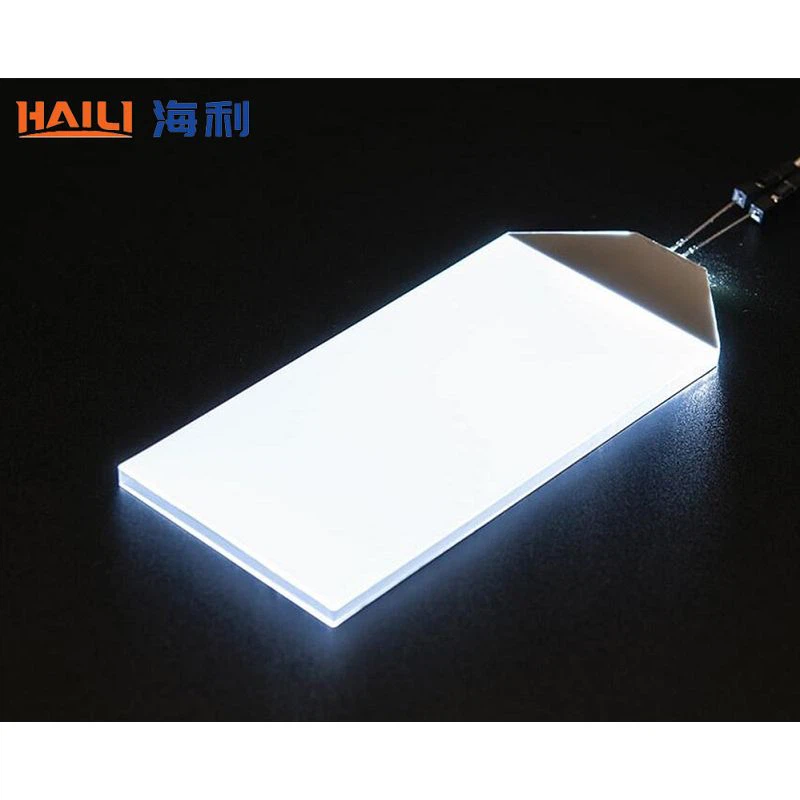
As an LCD backlight supplier, we offer a wide range of high - quality backlight products. Our LCD Backlight solutions are designed to provide optimal brightness, contrast, and color accuracy across different operating systems. Whether you're using a Windows laptop, a Mac, a Linux - based device, or a mobile phone, our backlights can enhance the visual experience.
One of our popular products is the LED Backlight with Fluorescent Colors. This backlight offers vibrant and vivid colors, making it ideal for applications where color accuracy is crucial, such as graphic design, photo editing, and video playback. Our backlights are also energy - efficient, which helps reduce power consumption and extends the battery life of mobile devices.
If you're interested in our LCD backlight products, we encourage you to contact us for a detailed discussion about your specific requirements. We can provide customized solutions based on your needs, whether it's for a small - scale project or a large - scale production. Our team of experts is ready to assist you in finding the best backlight solutions for your devices.
References
- Microsoft. Windows User Guide.
- Apple. macOS User Manual.
- Linux Documentation Project. Linux Backlight Control Guides.
- Google. Android Developer Documentation.
- Apple. iOS User Guide.


