

How to improve the sharpness of a 3.4 Inch TFT LCD Display?
Leave a message

As a supplier of 3.4 Inch TFT LCD Displays, I've witnessed firsthand the increasing demand for high - resolution and sharp visual outputs in various applications. In this blog, I'll share some effective ways to improve the sharpness of a 3.4 Inch TFT LCD Display.
Understanding the Basics of TFT LCD Sharpness
Before delving into the improvement methods, it's crucial to understand what sharpness means in the context of a TFT LCD display. Sharpness refers to the clarity and distinctness of the images and text displayed on the screen. It is influenced by several factors, including pixel density, contrast ratio, and the quality of the backlight.
Pixel density, measured in pixels per inch (PPI), plays a significant role in determining sharpness. A higher PPI means more pixels are packed into a given area, resulting in finer details and a sharper image. For a 3.4 - inch display, a higher PPI can make a substantial difference in the perceived sharpness, especially when displaying high - definition content.
The contrast ratio is another important factor. It is the ratio between the luminance of the brightest white and the darkest black that the display can produce. A higher contrast ratio allows for better differentiation between light and dark areas, enhancing the overall sharpness and clarity of the image.
The backlight also affects sharpness. A uniform and well - calibrated backlight ensures that the entire display has consistent brightness, reducing shadows and improving the visibility of details.
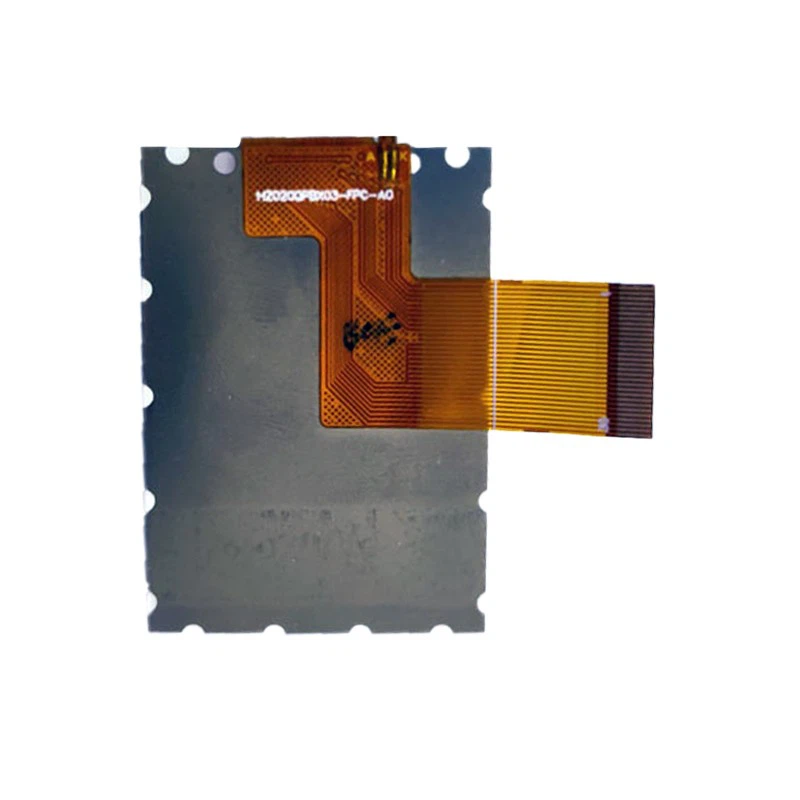

Optimizing Display Settings
One of the simplest ways to improve the sharpness of a 3.4 Inch TFT LCD Display is to optimize its display settings. Most modern displays come with a range of adjustable settings that can be tweaked to enhance sharpness.
Resolution Settings
Set the display to its native resolution. The native resolution is the optimal number of pixels that the display is designed to handle. Using a non - native resolution can result in blurry or pixelated images. For example, if your 3.4 Inch TFT LCD Display has a native resolution of 480x320 pixels, make sure to set your device to this resolution for the sharpest image possible.
Contrast and Brightness
Adjust the contrast and brightness settings to find the right balance. Increasing the contrast can make the blacks darker and the whites brighter, enhancing the separation between different elements in the image. However, setting the contrast too high can lead to loss of detail in the highlights and shadows. Similarly, adjusting the brightness to an appropriate level ensures that the display is neither too dim nor too bright, making it easier to see fine details.
Sharpness Filter
Some displays have a built - in sharpness filter. This filter can enhance the edges of objects in the image, making them appear crisper. However, be careful not to over - apply the sharpness filter, as it can introduce artifacts and make the image look unnatural.
Improving the Physical Environment
The physical environment in which the display is used can also have an impact on its perceived sharpness.
Lighting Conditions
Avoid using the display in direct sunlight or in a room with harsh, uneven lighting. Sunlight can wash out the colors and reduce the visibility of details, while uneven lighting can create shadows on the screen. Instead, use the display in a well - lit room with diffused lighting. You can also use curtains or blinds to control the amount of natural light entering the room.
Mounting and Positioning
Ensure that the display is mounted or positioned correctly. A tilted or misaligned display can cause distortion and make the image appear less sharp. Mount the display at eye level and at a comfortable viewing distance. This will reduce eye strain and allow you to see the details on the screen more clearly.
Upgrading Display Components
If you're looking for more significant improvements in sharpness, you may consider upgrading some of the display components.
Backlight Upgrade
As mentioned earlier, the backlight plays a crucial role in the overall sharpness of the display. Upgrading to a high - quality backlight can improve the brightness uniformity and color accuracy of the display. For example, some advanced backlights use local dimming technology, which can independently control the brightness of different areas of the display. This results in deeper blacks and higher contrast ratios, enhancing the sharpness of the image.
Panel Upgrade
In some cases, upgrading the display panel itself may be necessary. There are different types of TFT LCD panels available, each with its own set of characteristics. For example, in - plane switching (IPS) panels offer better color accuracy and wider viewing angles compared to twisted nematic (TN) panels. Upgrading to a higher - quality panel can significantly improve the sharpness and overall visual performance of the display.
Software and Driver Updates
Regularly updating the software and drivers for your display can also improve its sharpness. Manufacturers often release updates that include bug fixes, performance improvements, and new features. These updates can optimize the display's performance and ensure that it is running at its best.
Operating System Updates
Keep your operating system up to date. Operating system updates often include improvements to the display drivers and settings, which can enhance the sharpness and compatibility of your 3.4 Inch TFT LCD Display.
Display Driver Updates
Check the manufacturer's website for the latest display driver updates. Installing the latest drivers can resolve compatibility issues, improve color accuracy, and enhance the overall performance of the display.
Compatibility with Input Devices
The compatibility between the display and the input device can also affect sharpness. Make sure that the input device, such as a computer or a media player, is capable of outputting the appropriate resolution and signal format for the display.
Connectivity
Use high - quality cables to connect the display to the input device. A poor - quality cable can result in signal loss or interference, leading to a blurry or distorted image. For example, using a high - speed HDMI cable can ensure a stable and high - quality signal transfer, improving the sharpness of the displayed image.
Device Compatibility
Ensure that the input device is compatible with the display in terms of resolution and refresh rate. Some devices may not be able to output the native resolution of the display, or they may have a lower refresh rate than the display can support. In such cases, the image may appear blurry or flicker, reducing the perceived sharpness.
Conclusion
Improving the sharpness of a 3.4 Inch TFT LCD Display involves a combination of optimizing display settings, improving the physical environment, upgrading components, updating software and drivers, and ensuring compatibility with input devices. By following these tips, you can enhance the overall visual performance of your display and enjoy sharper, more detailed images.
If you're in the market for a high - quality 3.4 Inch TFT LCD Display or need further advice on improving the sharpness of your existing display, we're here to help. We also offer a wide range of other TFT LCD displays, such as 2 Inch TFT LCD Display, 1.69 Inch TFT LCD Display, and 0.96 Inch TFT LCD Display. Contact us to discuss your specific requirements and start a procurement negotiation.
References
- "Fundamentals of Flat Panel Displays" by Kenji Miyazaki
- "Display Technology Handbook" by John P. Fitts


