

How to program a 4.3 Inch TFT LCD Display?
Leave a message

Programming a 4.3 Inch TFT LCD Display can be an exciting and rewarding project, whether you're a hobbyist looking to add a visual element to your DIY electronics or a professional in the field of embedded systems. As a supplier of 4.3 Inch TFT LCD Displays, I've had the opportunity to work closely with customers who are eager to bring their display projects to life. In this blog post, I'll share some essential steps and tips on how to program a 4.3 Inch TFT LCD Display.
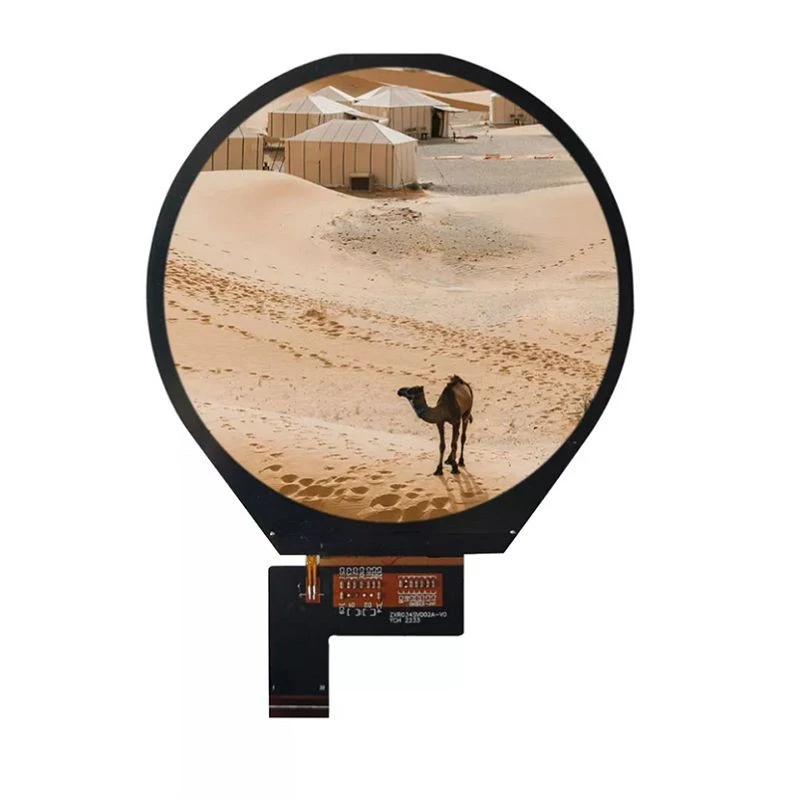

Understanding the Basics of 4.3 Inch TFT LCD Displays
Before diving into programming, it's crucial to understand the fundamental features of a 4.3 Inch TFT LCD Display. These displays typically offer a resolution of 480x272 pixels, which provides a decent amount of space for displaying text, images, and graphics. They use Thin-Film Transistor (TFT) technology, which allows for faster response times and better image quality compared to traditional LCDs.
The 4.3 Inch TFT LCD Display is commonly used in various applications, including industrial control panels, automotive infotainment systems, and portable devices. It usually comes with a controller board that simplifies the interface between the display and the microcontroller or single-board computer.
Choosing the Right Hardware
To program a 4.3 Inch TFT LCD Display, you'll need a few key pieces of hardware:
- Microcontroller or Single-Board Computer: This serves as the brain of your project and will be responsible for sending commands and data to the display. Popular choices include Arduino, Raspberry Pi, and STM32 microcontrollers.
- 4.3 Inch TFT LCD Display: Of course, you'll need the display itself. Make sure to choose a display that is compatible with your microcontroller or single-board computer. You can find a wide range of 4.3 Inch TFT LCD Displays on our website 4.3 Inch TFT LCD Display.
- Power Supply: Ensure that you have a stable power supply to provide the necessary voltage and current to the display and the microcontroller.
- Wiring and Connectors: You'll need to connect the display to the microcontroller using appropriate wiring and connectors. Pay attention to the pinout of the display and the microcontroller to ensure a proper connection.
Selecting the Programming Language and Libraries
The choice of programming language depends on the microcontroller or single-board computer you're using. Here are some common options:
- Arduino: If you're using an Arduino, you can program it using the Arduino IDE and the C/C++ programming language. There are many libraries available for interfacing with TFT LCD displays, such as the Adafruit_GFX library and the MCUFriend_kbv library.
- Raspberry Pi: For Raspberry Pi, you can use Python to program the display. The Pygame library and the TFT LCD drivers provided by the Raspberry Pi Foundation can be used to control the display.
- STM32: When working with STM32 microcontrollers, you can use the STM32CubeIDE and the C programming language. The STM32 HAL (Hardware Abstraction Layer) libraries can simplify the development process.
Interfacing the Display with the Microcontroller
Once you have chosen the hardware and programming language, it's time to interface the display with the microcontroller. Here are the general steps:
- Connect the Display: Follow the pinout diagram of the display and the microcontroller to connect the power, ground, data, and control pins. Make sure to double-check the connections to avoid any short circuits.
- Install the Libraries: If you're using a library to interface with the display, install it on your development environment. You can usually find the installation instructions in the library's documentation.
- Write the Code: Start writing the code to initialize the display and send data to it. The code will typically include functions to set the display mode, clear the screen, draw shapes, and display text.
- Compile and Upload the Code: Compile the code and upload it to the microcontroller. If everything is set up correctly, you should see the display come to life.
Programming Examples
Here are some simple programming examples for different platforms:
Arduino Example
#include <Adafruit_GFX.h>
#include <MCUFriend_kbv.h>

#define TFT_CS 10
#define TFT_RST 9
#define TFT_DC 8

MCUFriend_kbv tft;

void setup() {
  tft.begin(tft.readID());
  tft.fillScreen(TFT_BLACK);
  tft.setCursor(10, 10);
  tft.setTextColor(TFT_WHITE);
  tft.setTextSize(2);
  tft.println("Hello, 4.3 Inch TFT!");
}

void loop() {
  // You can add more code here to update the display
}
Raspberry Pi Python Example
import pygame
import time

# Initialize Pygame
pygame.init()

# Set the display size
display_width = 480
display_height = 272

# Create the display surface
display = pygame.display.set_mode((display_width, display_height))

# Fill the screen with black
display.fill((0, 0, 0))

# Create a font object
font = pygame.font.Font(None, 36)

# Render the text
text = font.render("Hello, 4.3 Inch TFT!", True, (255, 255, 255))

# Blit the text to the display
display.blit(text, (10, 10))

# Update the display
pygame.display.flip()

# Keep the program running for a few seconds
time.sleep(5)

# Quit Pygame
pygame.quit()
Troubleshooting
If you encounter any issues while programming the display, here are some common problems and solutions:
- No Display Output: Check the power supply, connections, and the code. Make sure that the display is properly initialized and that the data is being sent correctly.
- Flickering or Distorted Image: This could be due to a loose connection, incorrect timing, or a problem with the display driver. Try adjusting the timing settings or replacing the wiring.
- Incorrect Colors: Make sure that the color mode is set correctly in the code. Some displays support different color depths, such as 16-bit or 24-bit color.
Other TFT LCD Display Options
In addition to the 4.3 Inch TFT LCD Display, we also offer other sizes of TFT LCD Displays, such as the 3.4 Inch TFT LCD Display and the 2 Inch TFT LCD Display. These displays can be used in a variety of applications, depending on your specific requirements.
Contact Us for Procurement
If you're interested in purchasing 4.3 Inch TFT LCD Displays or have any questions about programming them, please feel free to contact us. We have a team of experts who can provide you with technical support and guidance throughout your project. Whether you're a small business or a large corporation, we can offer competitive pricing and high-quality products.
References
- Adafruit Industries. (n.d.). Adafruit_GFX Library. Retrieved from https://github.com/adafruit/Adafruit-GFX-Library
- MCUFriend. (n.d.). MCUFriend_kbv Library. Retrieved from https://github.com/prenticedavid/MCUFriend_kbv
- Raspberry Pi Foundation. (n.d.). Raspberry Pi Documentation. Retrieved from https://www.raspberrypi.org/documentation/
- STMicroelectronics. (n.d.). STM32CubeIDE. Retrieved from https://www.st.com/en/development-tools/stm32cubeide.html


