

How to repair a 7 Inch TFT LCD Display with dead pixels?
Leave a message

A 7-inch TFT LCD display is a versatile and widely used component in various electronic devices, from handheld gaming consoles to industrial control panels. However, one common issue that users may encounter is the presence of dead pixels. Dead pixels are individual pixels on the display that fail to light up or change color, resulting in small, often black or white dots on the screen. As a supplier of 7 Inch TFT LCD Display, I understand the frustration that dead pixels can cause. In this blog post, I will guide you through the process of repairing a 7-inch TFT LCD display with dead pixels, offering practical solutions and tips to help you restore your display to its optimal condition.
Understanding Dead Pixels
Before diving into the repair process, it's essential to understand what causes dead pixels. Dead pixels can occur due to a variety of reasons, including manufacturing defects, physical damage, or electrical issues. There are three main types of dead pixels:
- Stuck Pixels: These pixels are constantly displaying a single color, usually red, green, or blue. Stuck pixels can sometimes be fixed through various methods.
- Dead Pixels: These pixels are completely black and do not emit any light. Dead pixels are more challenging to repair and may require more advanced techniques.
- Hot Pixels: These pixels are always lit, regardless of the image being displayed. Hot pixels are less common than stuck or dead pixels but can still be a nuisance.
Tools and Materials You'll Need
To repair a 7-inch TFT LCD display with dead pixels, you'll need the following tools and materials:
- Microfiber Cloth: This is used to clean the display surface gently.
- Pixel Fixing Software: There are several free and paid pixel fixing software programs available online. These programs work by rapidly changing the color of the affected pixels, which can sometimes unstick them.
- Pressure Method Tools: You'll need a soft, blunt object, such as a pencil eraser or a cotton swab, to apply gentle pressure to the dead pixels.
- Isopropyl Alcohol: This is used to clean the display surface and remove any dirt or debris that may be causing the dead pixels.
Step-by-Step Repair Process
Step 1: Clean the Display
The first step in repairing a 7-inch TFT LCD display with dead pixels is to clean the display surface. Use a microfiber cloth dampened with isopropyl alcohol to gently wipe the display in a circular motion. Be careful not to apply too much pressure, as this can damage the display. Make sure to clean the entire surface of the display, including the edges and corners.
Step 2: Use Pixel Fixing Software
Once the display is clean, you can try using pixel fixing software to repair the dead pixels. There are several free and paid pixel fixing software programs available online, such as JScreenFix and Dead Pixel Buddy. These programs work by rapidly changing the color of the affected pixels, which can sometimes unstick them.
To use pixel fixing software, follow these steps:
- Download and install the pixel fixing software on your computer.
- Launch the software and select the option to scan for dead pixels.
- The software will then display a series of colors on the screen, rapidly changing the color of the affected pixels.
- Let the software run for at least 15-20 minutes, or until the dead pixels disappear.
Step 3: Apply Gentle Pressure
If the pixel fixing software does not work, you can try applying gentle pressure to the dead pixels. This method works by physically jostling the stuck pixels, which can sometimes unstick them.
To apply gentle pressure to the dead pixels, follow these steps:
- Place a soft, blunt object, such as a pencil eraser or a cotton swab, on the dead pixel.
- Apply gentle pressure to the object, making sure not to apply too much pressure, as this can damage the display.
- Hold the pressure for a few seconds, then release it.
- Repeat this process several times, moving the object slightly each time.
Step 4: Check for Progress
After applying gentle pressure to the dead pixels, check the display to see if the dead pixels have disappeared. If the dead pixels are still present, you can try repeating the process or using a different method.
Step 5: Seek Professional Help
If none of the above methods work, or if you are unsure how to proceed, it's best to seek professional help. A professional technician will have the necessary tools and expertise to diagnose and repair the dead pixels. They can also provide you with a warranty or guarantee on their work, giving you peace of mind.
Preventing Dead Pixels
While it's not always possible to prevent dead pixels from occurring, there are several steps you can take to reduce the risk of dead pixels:
- Handle the Display with Care: Avoid dropping, hitting, or applying too much pressure to the display, as this can cause physical damage and lead to dead pixels.
- Keep the Display Clean: Regularly clean the display surface with a microfiber cloth to remove any dirt or debris that may be causing the dead pixels.
- Use a Screen Protector: A screen protector can help protect the display from scratches and other types of damage, reducing the risk of dead pixels.
- Avoid Overheating: Overheating can cause damage to the display and increase the risk of dead pixels. Make sure to keep the display in a cool, well-ventilated area.
Conclusion
Dead pixels can be a frustrating issue, but with the right tools and techniques, you can often repair a 7-inch TFT LCD display with dead pixels. By following the steps outlined in this blog post, you can increase your chances of successfully repairing the dead pixels and restoring your display to its optimal condition.
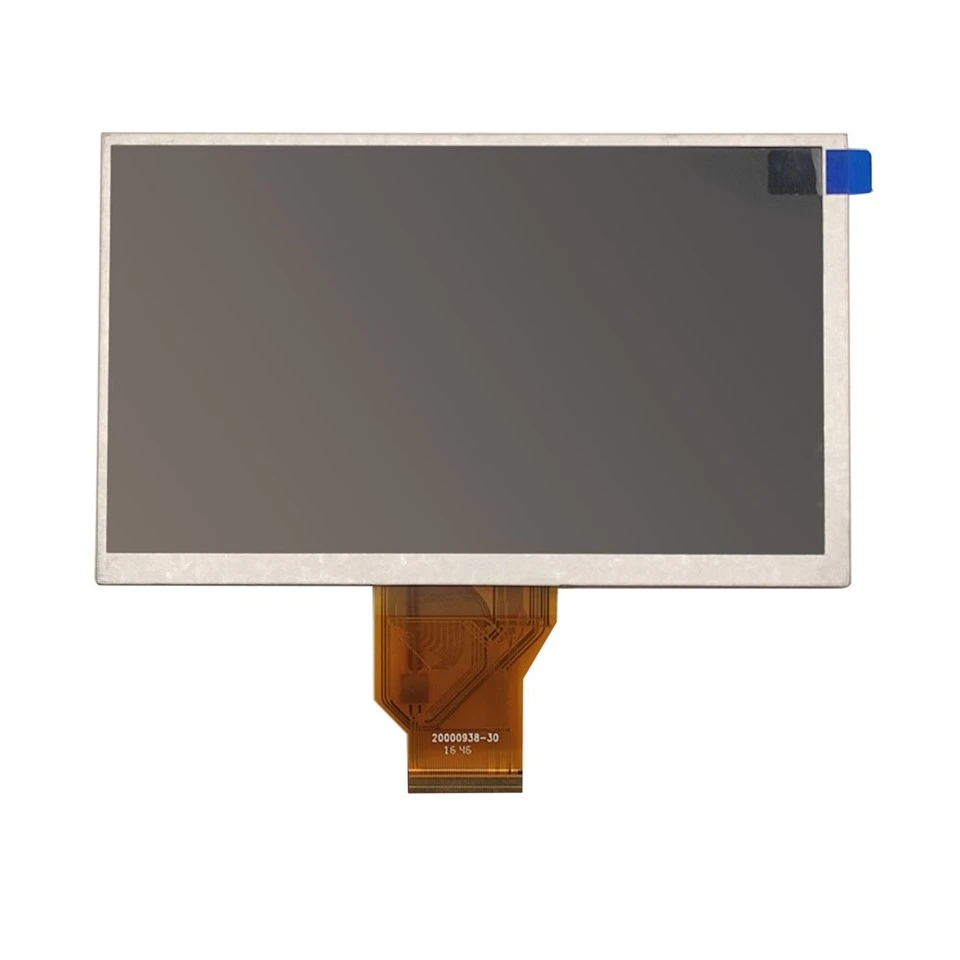

If you're in the market for a high-quality 7 Inch TFT LCD Display, 5 Inch TFT LCD Display, or 1.77 Inch TFT LCD Display, we're here to help. As a leading supplier of TFT LCD displays, we offer a wide range of products to meet your needs. Whether you're looking for a display for a handheld device, an industrial control panel, or a gaming console, we have the perfect solution for you.
If you have any questions or would like to discuss your specific requirements, please feel free to contact us. We're always happy to help and look forward to working with you.
References
- "LCD Pixel Repair: How to Fix Stuck and Dead Pixels." Lifewire.
- "How to Fix Dead Pixels on Your LCD Screen." PCMag.
- "Pixel Fixing Software: A Comprehensive Guide." Tom's Hardware.


