

How to troubleshoot an LED backlight problem?
Leave a message

Troubleshooting an LED backlight problem can be a complex yet manageable task. As a seasoned LED backlight supplier, I've encountered a wide range of issues over the years and have developed effective strategies to address them. In this blog, I'll share some valuable insights on how to troubleshoot LED backlight problems, drawing from my experience in the industry.
Understanding the Basics of LED Backlights
Before diving into troubleshooting, it's essential to have a basic understanding of how LED backlights work. LED backlights are commonly used in various devices, such as LCD monitors, televisions, laptops, and signage. They provide uniform illumination behind the display, enhancing visibility and color accuracy.
LED backlights consist of multiple LED chips arranged in a specific pattern on a printed circuit board (PCB). These chips emit light when an electrical current passes through them. The intensity and color of the light can be controlled by adjusting the current flowing through the LEDs. Additionally, LED backlights may include components such as drivers, controllers, and diffusers to ensure optimal performance.
Common LED Backlight Problems and Their Causes
There are several common problems that can occur with LED backlights. Here are some of the most frequent issues and their possible causes:
1. Dim or Flickering Backlight
- Cause 1: Power Supply Issues
- A faulty power supply can lead to insufficient power reaching the LED backlight, resulting in a dim or flickering display. This could be due to a damaged power cable, a malfunctioning power adapter, or a problem with the power source itself.
- Cause 2: LED Driver Failure
- The LED driver is responsible for regulating the current and voltage supplied to the LEDs. If the driver fails, it can cause the backlight to flicker or become dim. This may be caused by overheating, component failure, or electrical interference.
- Cause 3: Loose Connections
- Loose or damaged connections between the LED backlight and the power supply, driver, or display panel can also cause flickering or dimming. Over time, vibrations or physical stress can cause the connections to loosen, leading to intermittent power supply.
2. Dead Pixels or Dark Spots
- Cause 1: LED Chip Failure
- Individual LED chips can fail due to manufacturing defects, overheating, or electrical stress. When an LED chip fails, it can result in a dead pixel or a dark spot on the display.
- Cause 2: Poor Thermal Management
- Excessive heat can cause the LED chips to degrade over time, leading to dead pixels or dark spots. Inadequate ventilation or a malfunctioning cooling system can contribute to overheating.
- Cause 3: Physical Damage
- Physical damage to the LED backlight, such as a crack or impact, can also cause dead pixels or dark spots. This may occur during installation, transportation, or normal use.
3. Color Inconsistencies
- Cause 1: LED Aging
- Over time, the color output of the LED chips can change due to aging. This can result in color inconsistencies across the display, such as a yellowish or bluish tint.
- Cause 2: Incorrect Color Calibration
- If the display is not properly calibrated, it can lead to color inaccuracies. This may be due to incorrect settings on the display device or a problem with the color calibration software.
- Cause 3: Environmental Factors
- Environmental factors such as temperature, humidity, and light exposure can also affect the color output of the LED backlight. Extreme temperatures or high humidity levels can cause the LEDs to degrade or change color.
Troubleshooting Steps
Now that we've identified some common LED backlight problems and their causes, let's discuss the troubleshooting steps you can take to address them.
Step 1: Check the Power Supply
- Inspect the Power Cable: Ensure that the power cable is securely connected to both the power source and the LED backlight. Look for any signs of damage, such as frayed wires or loose connectors.
- Test the Power Adapter: If possible, use a multimeter to test the output voltage of the power adapter. Compare the measured voltage to the specifications provided by the manufacturer. If the voltage is outside the acceptable range, the power adapter may be faulty and need to be replaced.
- Verify the Power Source: Make sure the power source is functioning properly. Try plugging the LED backlight into a different outlet or using a different power strip to rule out any issues with the power source.
Step 2: Examine the LED Driver
- Check for Visible Damage: Inspect the LED driver for any signs of physical damage, such as burnt components or melted plastic. If you notice any damage, the driver will need to be replaced.
- Test the Driver Output: Use a multimeter to measure the output voltage and current of the LED driver. Compare the measured values to the specifications provided by the manufacturer. If the values are outside the acceptable range, the driver may be malfunctioning and need to be replaced.
- Check for Electrical Interference: Electrical interference from nearby devices or power sources can cause the LED driver to malfunction. Try moving the LED backlight away from any potential sources of interference or using a shielded power cable to reduce the interference.
Step 3: Inspect the Connections
- Check the PCB Connections: Ensure that all the connections on the printed circuit board (PCB) are secure. Look for any loose or damaged solder joints, and re-solder them if necessary.
- Verify the Display Panel Connections: Check the connections between the LED backlight and the display panel. Make sure the cables are properly seated and that there are no signs of damage. If the connections are loose, gently reinsert the cables to ensure a proper connection.
Step 4: Address Dead Pixels or Dark Spots
- Try Pixel Fixing Software: There are several pixel fixing software programs available that can help revive dead pixels. These programs work by rapidly changing the color of the affected pixels, which can sometimes stimulate the LED chips and restore their functionality.
- Check for Physical Damage: If you suspect that the dead pixels or dark spots are due to physical damage, carefully inspect the LED backlight for any cracks or impact marks. If the damage is severe, the LED backlight may need to be replaced.
- Contact the Manufacturer: If the above steps do not resolve the issue, contact the manufacturer of the LED backlight for further assistance. They may be able to provide additional troubleshooting steps or offer a replacement if the product is still under warranty.
Step 5: Correct Color Inconsistencies
- Calibrate the Display: Use the built-in color calibration tools on your display device to adjust the color settings. Follow the manufacturer's instructions to ensure accurate calibration.
- Check the Color Temperature: Adjust the color temperature settings on your display device to match your preferences. A higher color temperature will result in a cooler, bluish tint, while a lower color temperature will produce a warmer, yellowish tint.
- Replace the LED Backlight: If the color inconsistencies persist after calibration, it may be necessary to replace the LED backlight. Contact the manufacturer or a professional technician for assistance with the replacement process.
Preventive Maintenance
In addition to troubleshooting LED backlight problems, it's important to implement preventive maintenance measures to minimize the risk of future issues. Here are some tips to help you keep your LED backlights in good working condition:
- Proper Installation: Follow the manufacturer's instructions carefully when installing the LED backlight. Ensure that the backlight is securely mounted and that all the connections are properly made.
- Regular Cleaning: Keep the LED backlight and the surrounding area clean to prevent dust and debris from accumulating. Use a soft, dry cloth to gently wipe the surface of the backlight.
- Adequate Ventilation: Provide sufficient ventilation to prevent the LED backlight from overheating. Avoid placing the backlight in enclosed spaces or near heat sources.
- Avoid Physical Damage: Handle the LED backlight with care to prevent physical damage. Avoid dropping or hitting the backlight, and use protective packaging when transporting it.
- Regular Inspections: Periodically inspect the LED backlight for any signs of damage or wear. Look for loose connections, burnt components, or discoloration. If you notice any issues, address them promptly to prevent further damage.
Conclusion
Troubleshooting an LED backlight problem requires a systematic approach and a basic understanding of how LED backlights work. By following the steps outlined in this blog, you can identify and address common issues such as dim or flickering backlights, dead pixels or dark spots, and color inconsistencies. Remember to implement preventive maintenance measures to keep your LED backlights in good working condition and minimize the risk of future problems.

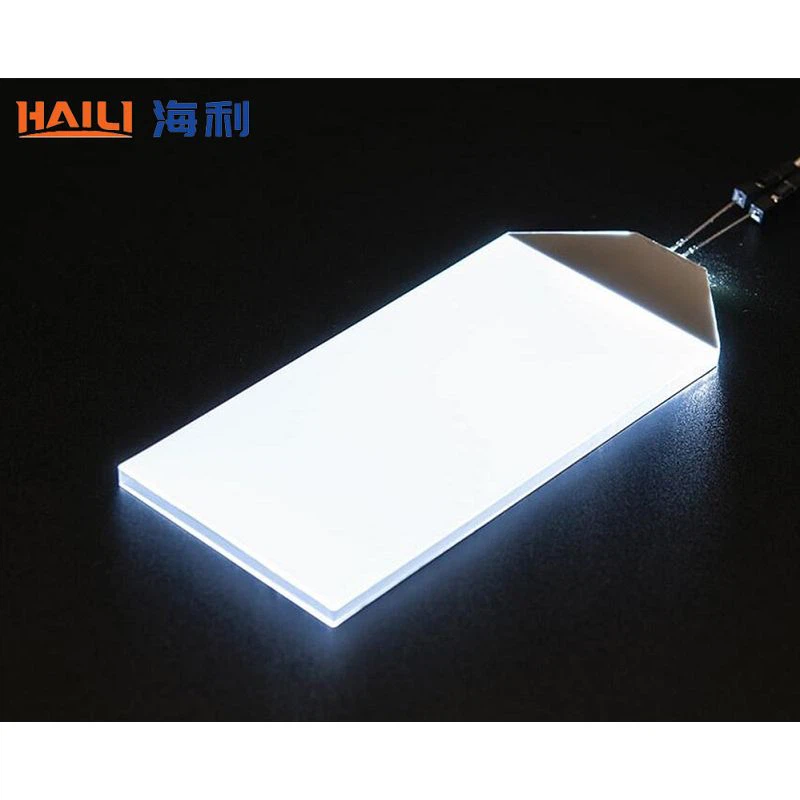
If you're experiencing persistent LED backlight problems or need further assistance, don't hesitate to contact us. As a leading LCD Backlight and LED Backlight with Fluorescent Colors supplier, we have the expertise and resources to help you find the right solution for your needs. Whether you're looking for replacement parts, technical support, or custom-designed LED backlights, we're here to assist you. Let's work together to ensure your displays shine bright!
References
- Smith, J. (2020). LED Backlight Technology: Principles and Applications. New York: Wiley.
- Johnson, M. (2019). Troubleshooting Guide for LED Lighting Systems. London: Elsevier.
- Manufacturer's Manuals and Technical Documents for LED Backlights.


