

How to calibrate a 2.4 Inch TFT LCD Display?
Leave a message

Hey there! As a supplier of 2.4 Inch TFT LCD Displays, I've seen a lot of folks scratching their heads over how to calibrate these little guys. So, I thought I'd put together this blog to walk you through the process step by step.
First off, let's talk about why calibration is so important. A well - calibrated display can make a world of difference. It ensures accurate color representation, sharp images, and proper contrast. Whether you're using the display for a DIY project, a commercial application, or just for fun, calibration is key to getting the best performance out of your 2.4 Inch TFT LCD Display.
What You'll Need
Before we dive into the calibration process, let's gather the necessary tools. You'll need a computer with a graphics card that can output the appropriate resolution for your display. A calibration software is also essential. There are plenty of free and paid options out there. Some popular ones include DisplayCAL and Datacolor Spyder. Additionally, you'll need a calibration device, like a colorimeter. This little gadget measures the color and brightness of your display and helps the software make accurate adjustments.
Step 1: Prepare Your Display
Start by turning on your 2.4 Inch TFT LCD Display and letting it warm up for at least 30 minutes. This allows the display to reach its optimal operating temperature and ensures consistent performance. During this time, make sure the display is in a stable environment, away from direct sunlight or other sources of bright light. You want to calibrate the display under normal viewing conditions.
Next, clean the screen gently with a microfiber cloth. Any dust or smudges on the screen can affect the calibration results. Make sure the display is set to its native resolution. You can usually find this information in the display's user manual. Setting the correct resolution ensures that the calibration is accurate and that the images look sharp.
Step 2: Install the Calibration Software
Once your display is ready, it's time to install the calibration software on your computer. Follow the instructions provided by the software manufacturer. Most software is pretty straightforward to install, and you'll usually just need to click through a few prompts.
After the installation is complete, launch the software. You may need to register the software or enter a license key if it's a paid version. Once the software is up and running, it will guide you through the calibration process.
Step 3: Connect the Calibration Device
Now, connect your colorimeter to your computer. Most colorimeters connect via USB. Make sure the connection is secure. The software should detect the calibration device automatically. If it doesn't, check the software's settings or the device's user manual for troubleshooting tips.
Once the software has detected the colorimeter, place it on the center of your 2.4 Inch TFT LCD Display. Make sure the sensor on the colorimeter is facing the screen and is in contact with it. Some colorimeters come with a stand or a clip to help you position it correctly.
Step 4: Start the Calibration Process
In the calibration software, look for an option to start the calibration. The software will display a series of test patterns on your display. These patterns are used to measure the color, brightness, and contrast of the display. The colorimeter will read the patterns and send the data back to the software.
The software will then analyze the data and make adjustments to the display's settings. This process may take a few minutes. During this time, don't touch the display or the calibration device. Let the software do its job.
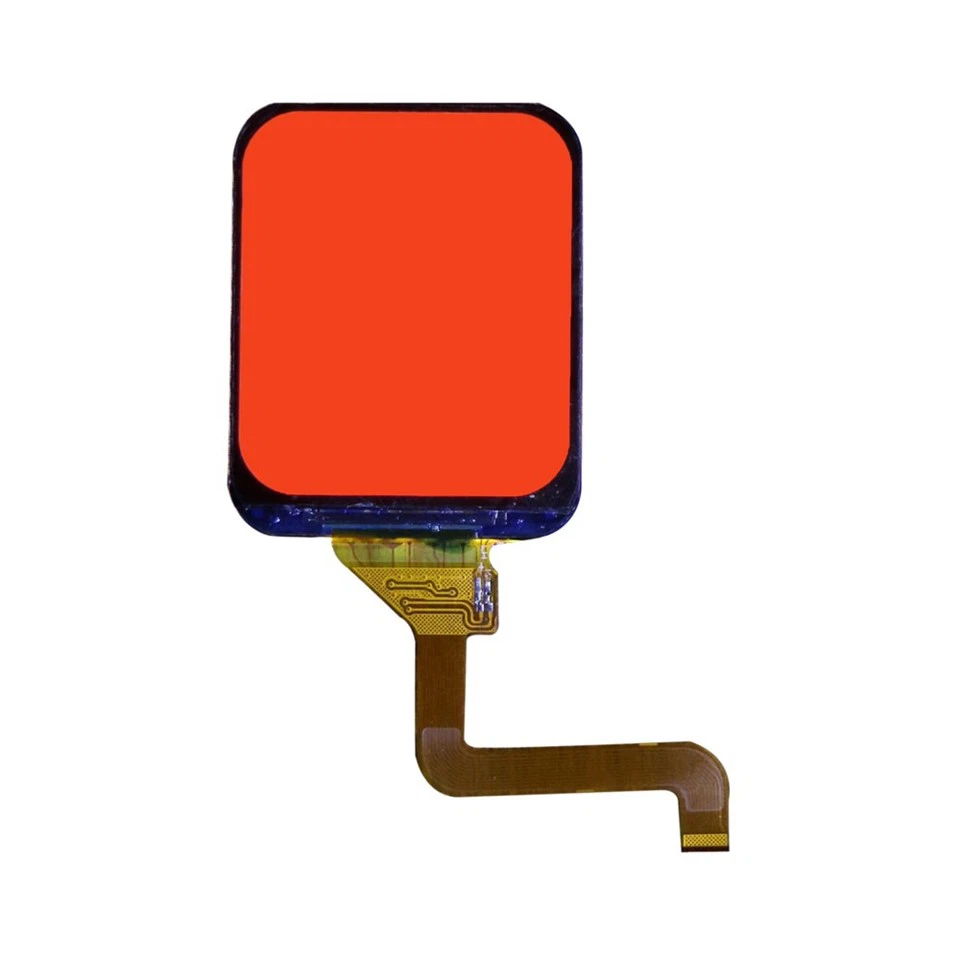
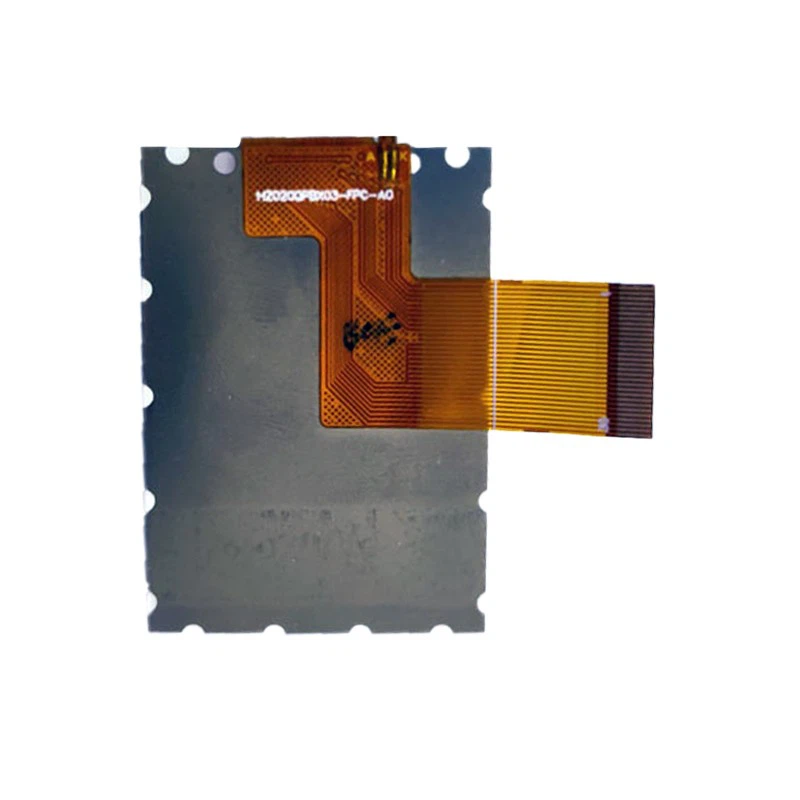
Step 5: Review and Adjust the Results
Once the calibration is complete, the software will display a report showing the results. It will show you how the display's color, brightness, and contrast have been adjusted. You can review the report to see if you're satisfied with the results.
If you're not happy with the calibration, you can usually go back and make manual adjustments. The software may allow you to adjust the color temperature, gamma, or other settings. Experiment with these settings until you get the look you want.
Step 6: Save the Calibration Profile
Once you're satisfied with the calibration, save the calibration profile. The profile contains all the settings that were adjusted during the calibration process. You can apply this profile to your display in the future if you need to recalibrate or if you want to restore the calibrated settings.
Most calibration software allows you to save the profile in a standard format, like ICC. You can then use this profile on other computers or devices that support ICC profiles.
Other Considerations
Keep in mind that calibration is not a one - time thing. Over time, the display's performance may change due to factors like aging or environmental conditions. It's a good idea to recalibrate your 2.4 Inch TFT LCD Display every few months to ensure consistent performance.
Also, if you're using your display for professional applications, like graphic design or photography, you may want to consider getting a more advanced calibration device and software. These tools can provide more accurate and detailed calibration results.
If you're interested in other sizes of TFT LCD displays, we also offer 1.69 Inch TFT LCD Display, 1.44 Inch TFT LCD Display, and 2 Inch TFT LCD Display. Each of these displays has its own unique features and applications.
Conclusion
Calibrating a 2.4 Inch TFT LCD Display may seem like a daunting task, but with the right tools and a little patience, it's actually quite doable. By following these steps, you can ensure that your display looks its best and provides accurate color and sharp images.
If you're in the market for a 2.4 Inch TFT LCD Display or any of our other products, we'd love to hear from you. Whether you're a hobbyist, a professional, or a business owner, we can provide you with high - quality displays and excellent customer service. Reach out to us to start a conversation about your needs and how we can help you find the perfect display for your project.
References
- DisplayCAL User Manual
- Datacolor Spyder Product Documentation
- 2.4 Inch TFT LCD Display User Manual


